How to Use Designer Toolbar Features?
Here's a step-by-step guide to use the Designer Toolbar features available in ScalePrint Designer & Variants. These tools help you navigate the design canvas, reset the view, and easily share your design preview.
-
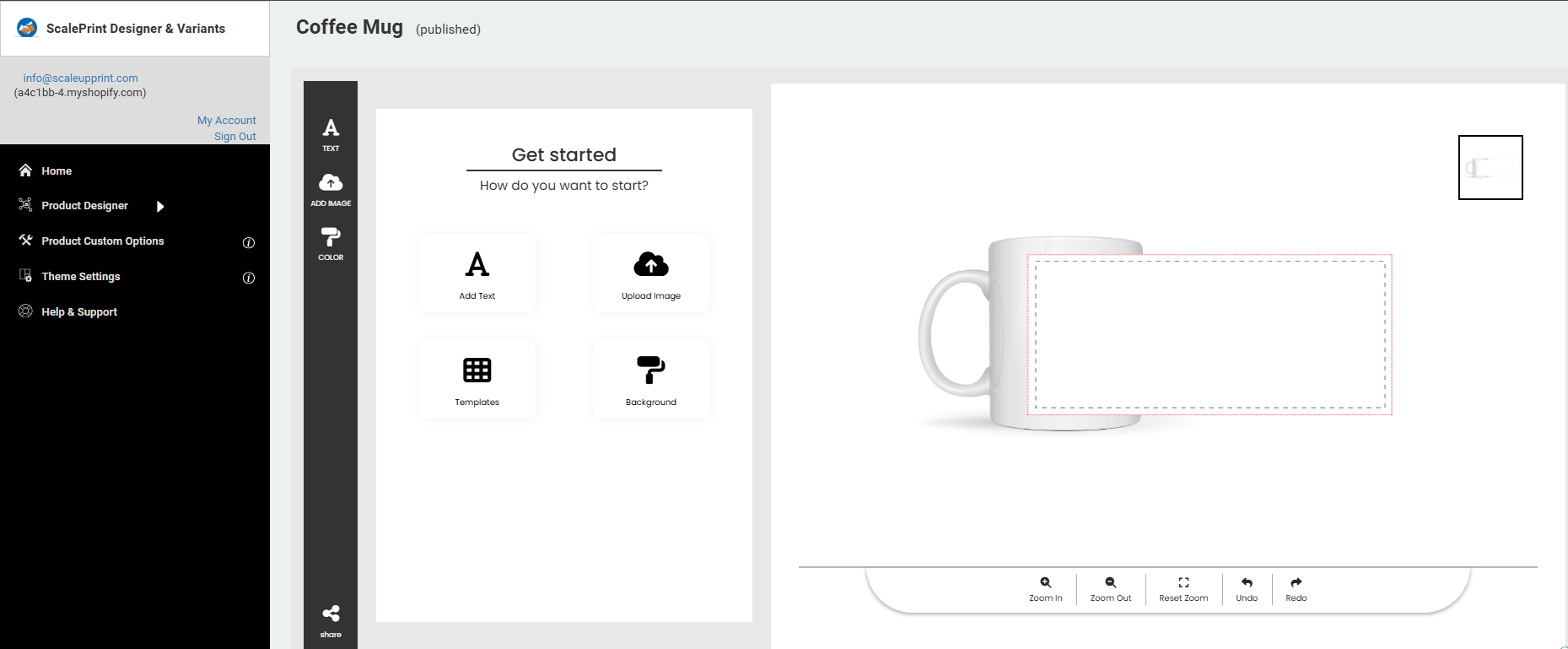
Open the Product Designer
Open any customizable product from your Shopify store and click the Customize button. This will open the ScalePrint Designer where all toolbar features are available.
-
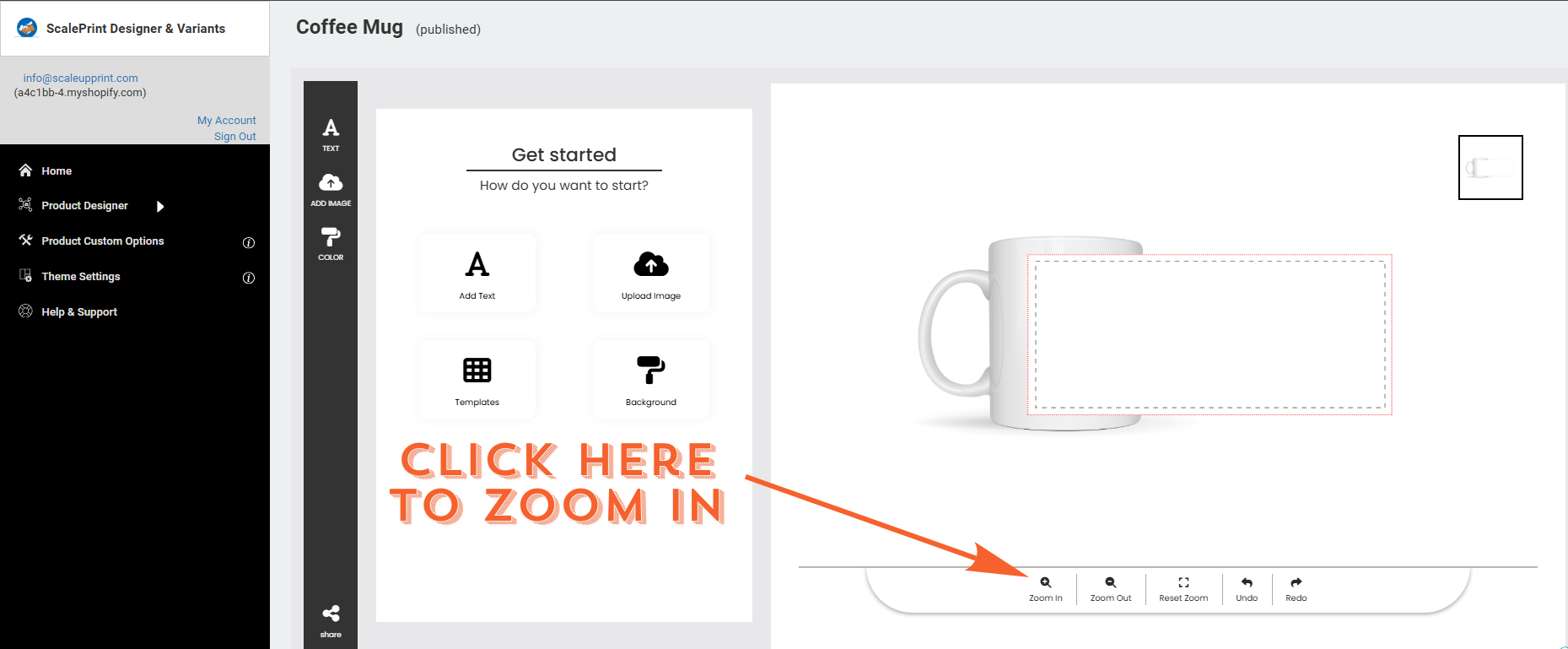
Zoom In
Click the Zoom In button located at the bottom toolbar to enlarge the design canvas. This helps you work more accurately while editing text, images, clipart, or other design elements.
-
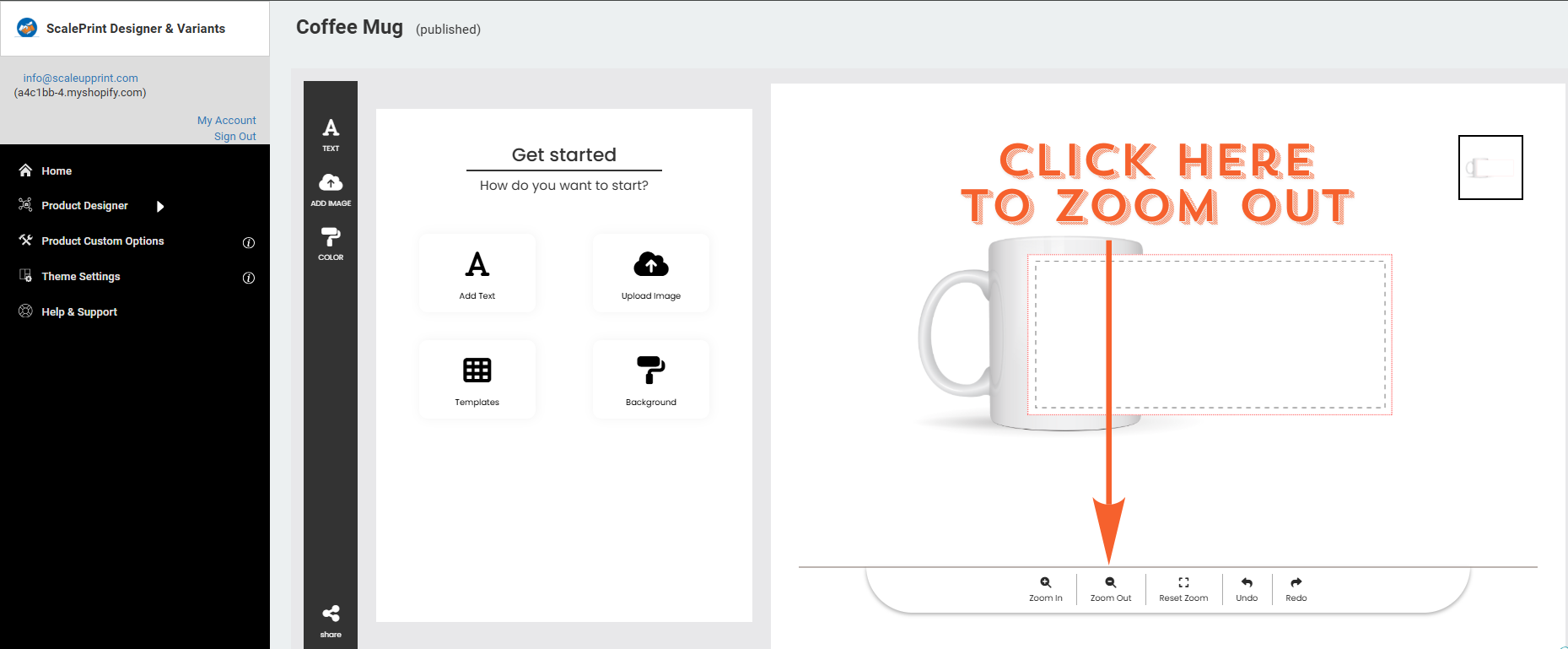
Zoom Out
Click the Zoom Out button to reduce the zoom level and view a larger area of your product design. This is useful when reviewing the overall layout.
-
Reset Zoom
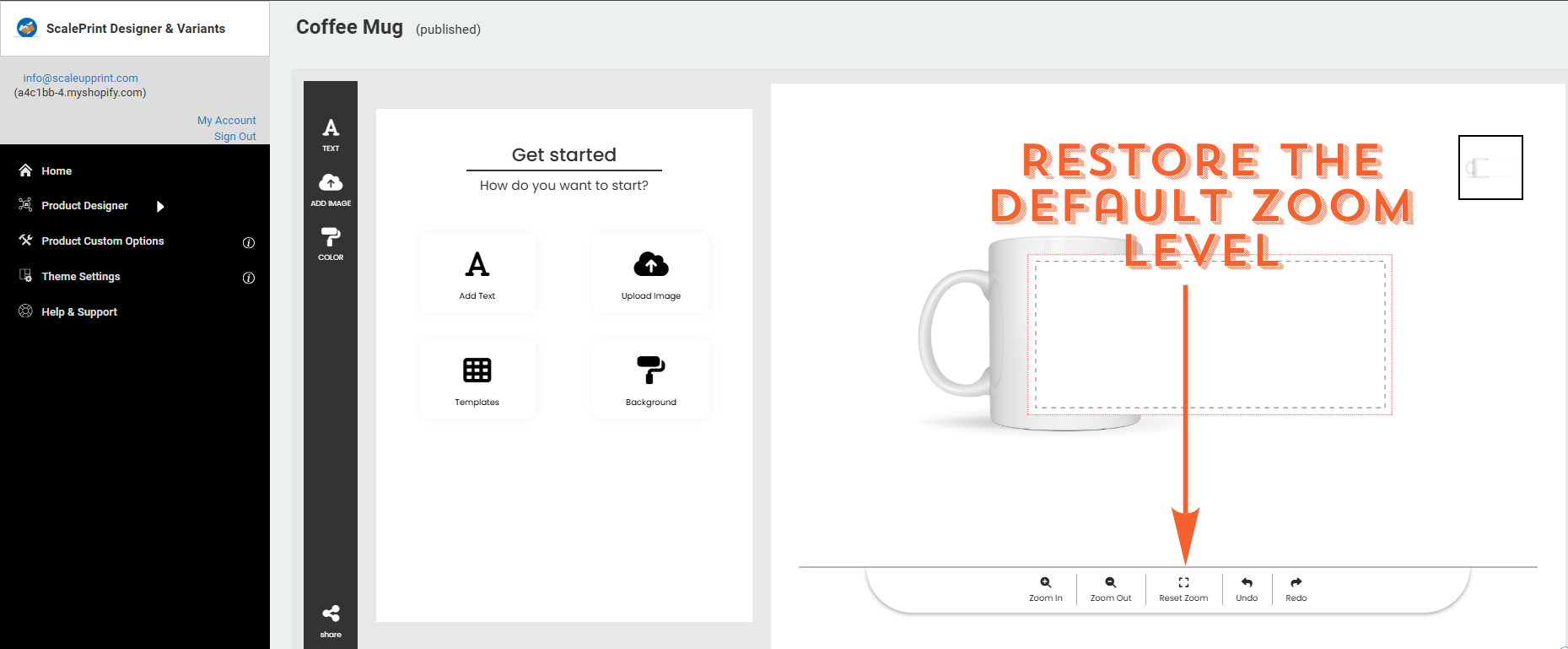
If you have zoomed in or out multiple times, click the Reset Zoom button to restore the canvas to its default zoom level.
-
Share Preview
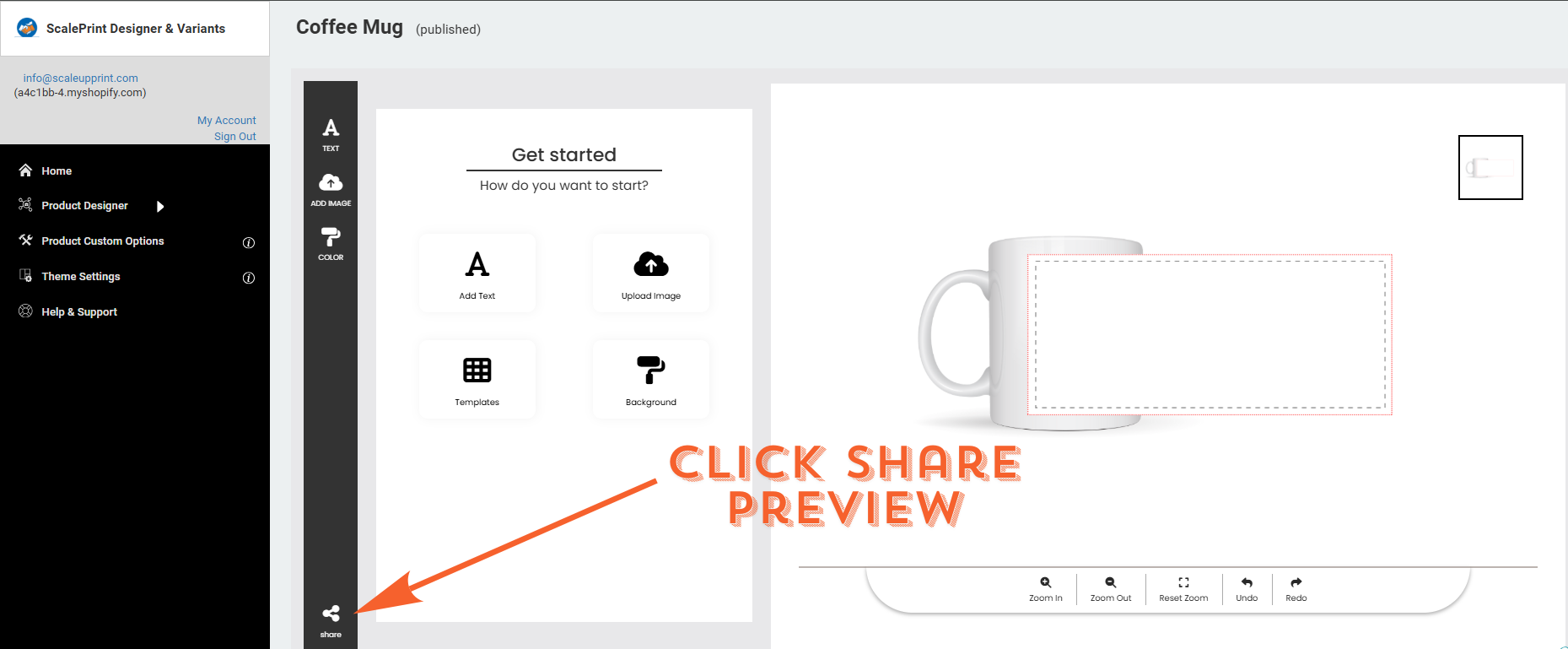
Click the Share button from the left toolbar to generate a shareable preview of your current design.
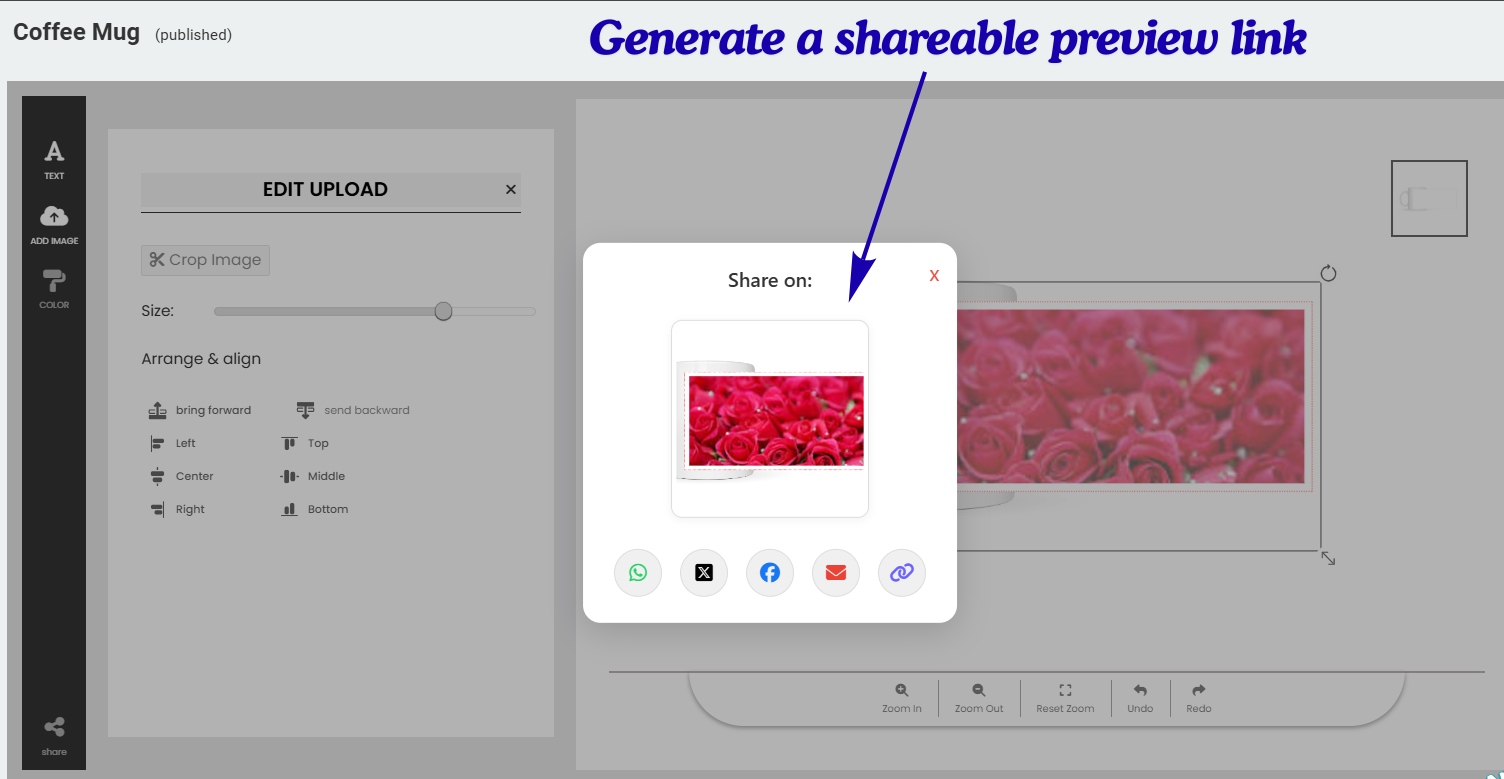
The Share Preview dialog will open, displaying your design preview. You can copy the generated shareable link or share it directly via the available platforms to let customers or team members review the design.
Congratulations! You have successfully learned how to use the Designer Toolbar features including Zoom In, Zoom Out, Reset Zoom, and Share Preview in ScalePrint Designer & Variants.